

Outlook Storage Full? Outlook Mailbox Full Fix in 7 Easy Steps
Outlook mailbox full fix, step by step explanation, without tech headaches
If you’re here, chances are Outlook just interrupted your day with that dreaded message: “Your mailbox is full.”
Emails stop sending. Attachments bounce back. New messages don’t arrive. And suddenly, something as basic as email becomes a productivity blocker.
You might be using Outlook for work, freelancing, travel planning, online shopping receipts, website alerts, or even managing multiple projects at once. Over time, emails pile up silently — newsletters, invoices, OTPs, image-heavy attachments — until one day Outlook refuses to cooperate.
The frustrating part?
Most people don’t even realize what is actually eating up Outlook storage.
Even worse?
Deleting a few emails doesn’t always fix the problem.
That’s exactly why this guide exists.
In this complete Outlook mailbox full fix, I’ll walk you through 7 proven, real-world methods that instantly free up mailbox space, without breaking anything, losing important emails, or relying on risky third-party tools.
This isn’t theory. These are tested fixes used by professionals who manage high-volume Outlook inboxes daily.
By the time you finish this guide, you’ll:
- Know exactly why Outlook storage fills up
- Learn how to clear space instantly
- Set up automatic systems so this never happens again
- Understand Outlook vs Outlook.com vs Microsoft 365 limits
- Avoid common mistakes that keep the mailbox full forever
Whether you’re a casual Outlook user or rely on email for business productivity, this article will save you time, stress, and future headaches.
Let’s fix it, properly.
Why Outlook Says “Mailbox Full” (Even After Deleting Emails)
Before jumping into the Outlook mailbox full fix, it’s important to understand why this happens in the first place.
Outlook storage fills up due to a combination of:
- Large email attachments
- Sent Items storing copies of attachments
- Deleted items not permanently removed
- Junk folder silently growing
- Calendar invites with files
- Auto-syncing across devices
- Hidden folders like RSS Feeds
Unlike Gmail, Outlook doesn’t aggressively manage space for you. That responsibility falls on the user.
If you run websites, manage online accounts, or subscribe to updates — similar to how inboxes grow after publishing blog posts or setting up analytics (like explained in how to get your website to appear in search engines) — emails accumulate faster than expected.
Related Read: How To Fix The Email Attachments Not Opening Problem On Outlook.com
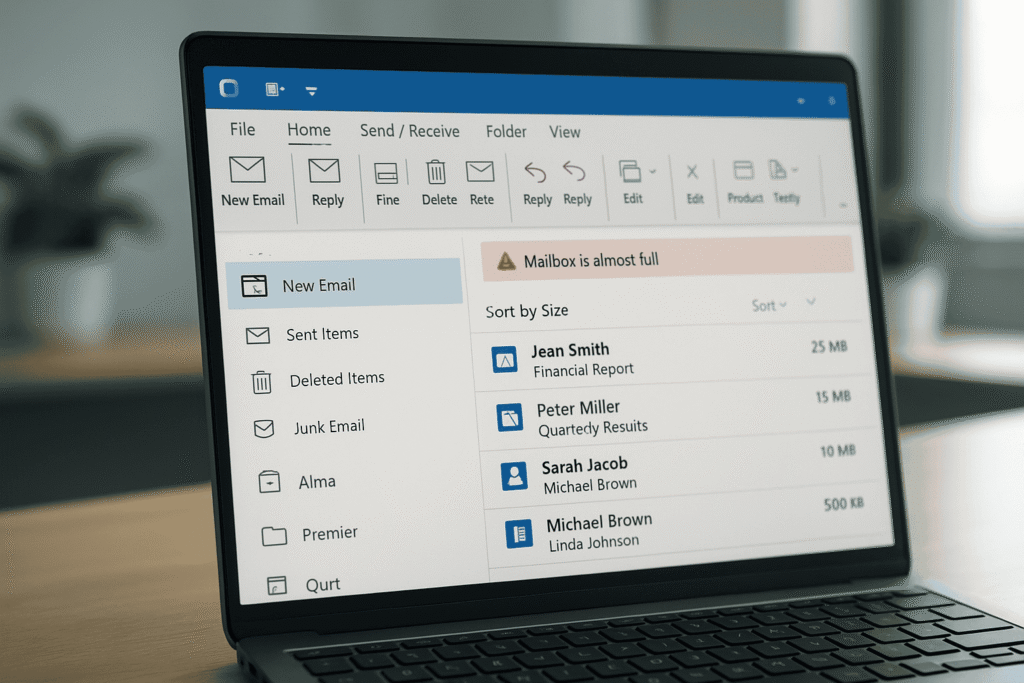
Outlook Storage Limits You Should Know (Outlook Desktop vs Outlook.com)
Outlook Desktop (PST / OST Files)
- Default limit: 50 GB
- Older versions: 20 GB
- Storage depends on your local system + account type
Outlook.com (Free Microsoft Accounts)
- Total storage: 15 GB (shared with OneDrive)
Microsoft 365 / Exchange Accounts
- Mailbox limits: 50 GB to 100 GB
- Archive mailbox available
Knowing your account type determines which Outlook mailbox full fix will work best.
1. Empty Deleted Items Folder (Properly)
This sounds obvious — but most people don’t do it correctly.
Deleting emails only moves them to Deleted Items, which still counts toward your mailbox size.
How to permanently clear it:
- Open Outlook
- Right-click Deleted Items
- Select Empty Folder
- Restart Outlook
💡 Pro tip: Do the same for Junk Email
This alone can instantly free hundreds of MBs.
If you often clear cache or storage on websites or WordPress (like resolving issues similar to advanced cache PHP error in WordPress), think of this as clearing Outlook’s trash cache.
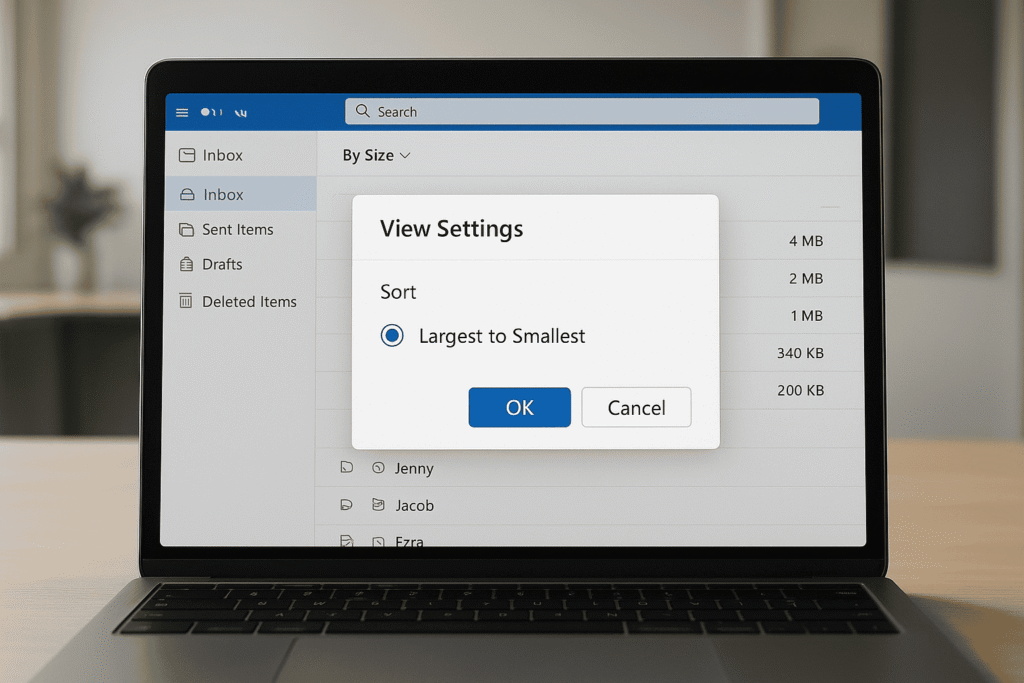
2. Sort Emails by Size (The Fastest Outlook Mailbox Full Fix)
This is where most users are shocked.
A handful of emails usually consume 80% of the space.
Steps:
- Go to Inbox
- Click View → View Settings
- Choose Sort → Size
- Sort Largest to Smallest
You’ll immediately see emails with:
- PDFs
- ZIP files
- Images
- Video attachments
Delete or save attachments locally, then remove the email.
This method is the fastest Outlook mailbox full fix when storage is critical.
3. Clean Sent Items (The Most Ignored Folder)
Most people forget that Sent Items store attachments too.
If you:
- Send resumes
- Share PDFs
- Email images
- Forward documents
…your Sent folder is probably massive.
Fix:
- Sort Sent Items by Size
- Delete large attachment emails
- Save important files to your computer or cloud
This step alone fixes Outlook storage issues for many professionals.
4. Use Outlook’s Built-In Mailbox Cleanup Tool
Outlook includes a powerful but underused feature.
How to access:
File → Tools → Mailbox Cleanup
Here you can:
- View mailbox size
- Find emails older than X days
- Find emails larger than X MB
- Auto-delete redundant messages
This tool is designed specifically as an official Outlook mailbox full fix, not a workaround.
5. Move Old Emails to Archive (Smart, Not Risky)
Archiving is different from deleting.
Archived emails:
- Stay accessible
- Don’t count toward main mailbox quota
- Reduce sync load
Manual Archive:
- Select old emails
- Right-click → Archive
Auto Archive (Highly Recommended):
If you regularly hit limits, enable auto-archiving.
Detailed walkthrough available here:
Auto Archive in Outlook – Complete Guide
This is a long-term Outlook mailbox full fix that prevents future issues.
6. Remove Large Attachments Without Deleting Emails
Sometimes you need the email — not the attachment.
Best practice:
- Open email
- Download attachment
- Save to:
- PC
- External drive
- Cloud storage
- Delete attachment from email
- Keep the email text
This works well for invoices, bookings, or travel confirmations — similar to managing digital documents when planning trips (like discussed in what to pack when going on a cruise with children).
Related Read: How to clear up space on outlook.com and fix “Your Mailbox is full” prompt
Also Read: Manage your mailbox storage in Outlook (Microsoft Support)
7. Reduce Outlook Sync Data (Hidden Storage Saver)
Outlook often syncs years of email locally.
Fix:
- File → Account Settings
- Change → Mail Settings
- Reduce “Mail to keep offline” (e.g., 3–6 months)
- Restart Outlook
This doesn’t delete emails, it simply stops syncing unnecessary data.
Common Mistakes That Keep Outlook Mailbox Full
- Only deleting inbox emails
- Ignoring Sent & Junk folders
- Never emptying Deleted Items
- Not using archive
- Keeping large attachments forever
- Assuming Outlook auto-manages storage
Avoiding these mistakes ensures your Outlook mailbox full fix actually lasts.
People Also Ask (Outlook Storage Questions)
Why does Outlook say mailbox full when I deleted emails?
Because deleted emails still exist in Deleted Items and count toward storage.
Does archiving free space in Outlook?
Yes — archived emails don’t count toward your active mailbox quota.
How often should I clean Outlook?
Monthly manual cleanup + auto archive is ideal.
Can I increase Outlook storage?
Only with Microsoft 365 upgrades. Cleanup is the fastest fix.
Is Outlook storage shared with OneDrive?
Yes, for Outlook.com free accounts.
Best Practices to Never See “Mailbox Full” Again
- Auto-archive emails
- Save attachments externally
- Unsubscribe from unnecessary newsletters
- Clear Junk monthly
- Review Sent Items quarterly
- Monitor mailbox size
Treat Outlook like any productivity tool. Maintenance matters.
Conclusion: Your Complete Outlook Mailbox Full Fix (Solved for Good)
If Outlook storage issues have been slowing you down, you now have a complete, proven Outlook mailbox full fix that actually works.
Let’s recap what you learned:
You discovered why Outlook mailboxes fill up silently, even when you think you’re deleting emails.
You learned how to instantly reclaim space by targeting the folders and files that actually matter.
You implemented smart, long-term solutions like archiving and sync optimization.
You avoided common mistakes that cause Outlook storage problems to return again and again.
Most importantly, you now understand that an Outlook mailbox full fix isn’t about deleting random emails, it’s about strategic cleanup and prevention.
Use these steps once, and you’ll fix the problem.
Use them regularly, and you’ll never see the “mailbox full” warning again.
If you manage multiple inboxes, online accounts, or digital workflows, just like managing websites, analytics, or online tools — this Outlook mailbox full fix will save you hours every year.
Bookmark this guide.
Share it with anyone stuck with Outlook storage issues.
And enjoy a clean, fast, stress-free inbox again.
Related Reads:
Microsoft Outlook storage limits documentation (Outlook.com)