
How to Fix Error Establishing a Database Connection in WordPress (10 Proven Solutions)
Error Establishing a Database Connection in WordPress is one of the most frustrating errors website owners can encounter. It prevents your website from connecting to its database, which means visitors may see an error message instead of your content, and you may also lose access to your WordPress dashboard. Fortunately, this problem is usually fixable. In this guide, you’ll learn how to identify the cause and follow 10 practical solutions to restore your WordPress website.
The good news is that this error does not necessarily mean your website or its content has been lost. In many cases, the problem is related to incorrect database credentials, an unavailable database server, hosting limitations, or a database configuration issue.
WordPress relies on a database to retrieve and display your website’s content. When it cannot establish that connection, it cannot load your website properly.
In this guide, we will explain what causes the WordPress database connection error and walk you through 10 practical solutions to identify and fix it. Whether you are using shared hosting, VPS hosting, or a managed WordPress hosting service, these troubleshooting steps will help you understand where the problem may be and what to do next.
1. What Does Error Establishing a Database Connection Mean in WordPress?
WordPress is a content management system (CMS) that uses PHP and a database to operate. Your website’s posts, pages, comments, user accounts, settings, and other important information are stored in a database, typically powered by MySQL or MariaDB.
Whenever someone visits your website, WordPress needs to retrieve information from that database to display the requested page.
The process works roughly like this:
Visitor requests a page → WordPress executes PHP → WordPress connects to MySQL or MariaDB → Database returns the requested information → WordPress displays the page.
If WordPress cannot communicate with the database, the process stops and the website displays the error:
Error Establishing a Database Connection
There are several possible reasons for this failure. WordPress may be using incorrect database credentials, the database server may be unavailable, or the database user may not have the required permissions.
It is important to understand that this error does not automatically mean your database has been deleted or corrupted. Your website’s files and database may still be intact.
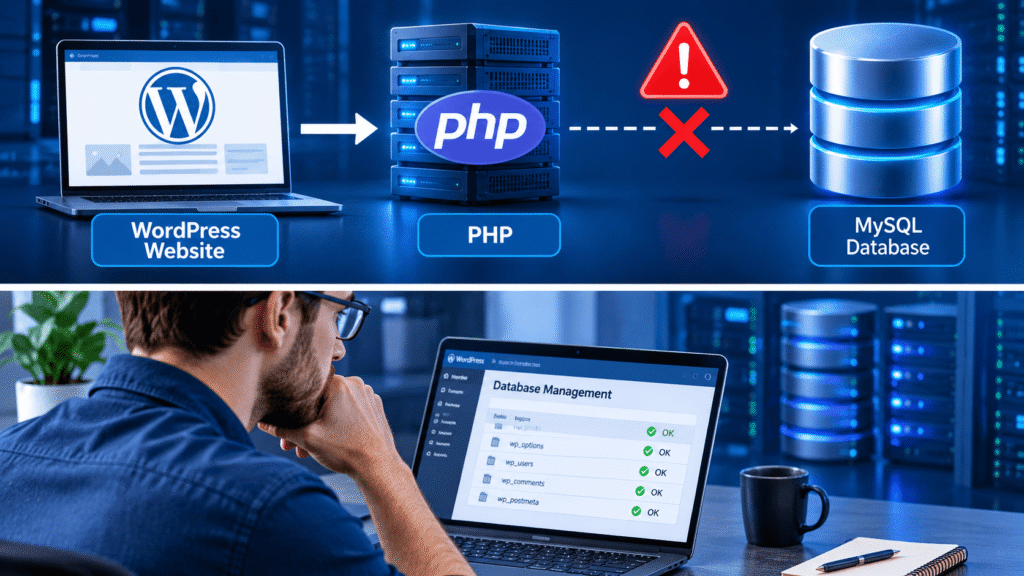
What is the difference between WordPress and its database?
Think of WordPress as the system that manages and displays your website, while the database is where much of its content and information is stored.
| Component | Purpose |
|---|---|
| WordPress | Manages your website and displays its content |
| PHP | Executes the code that powers WordPress |
| MySQL/MariaDB | Stores and retrieves website information |
| wp-config.php | Contains important WordPress configuration details, including database connection settings |
| Hosting server | Runs the website and provides access to its files and database |
If any essential part of this connection stops working, WordPress may be unable to display your website.
Is this the same as a 500 Internal Server Error?
No. Although both errors can make your website inaccessible, they indicate different types of problems.
A 500 Internal Server Error means the server encountered an unexpected condition while processing a request. A database connection error specifically means WordPress could not establish the required database connection.
If you are experiencing a general server error instead, read our guide on how to fix the 500 Internal Server Error in WordPress.
2. Common Causes of the WordPress Database Connection Error
Before attempting any fixes, it is important to understand what might have caused the problem. Randomly changing database settings can make the situation worse.
Here are the most common possibilities:
| Possible cause | What happens |
|---|---|
| Incorrect database name | WordPress attempts to connect to a database that does not exist or is incorrectly identified |
| Incorrect username or password | WordPress cannot authenticate with the database server |
| Incorrect database hostname | WordPress attempts to connect to the wrong database server |
| Database server unavailable | MySQL or MariaDB is temporarily down or unreachable |
| Incorrect database permissions | The database user does not have the required access |
| Database corruption | One or more database tables may be damaged |
| Hosting resource limitations | The database server may be unable to accept additional connections |
| Incorrect wp-config.php settings | WordPress is using outdated or incorrect configuration information |
| Incomplete website migration | Database files, credentials, or configuration were not transferred correctly |
| Recent credential changes | The database password or username was changed without updating WordPress |
| Hosting server issues | Server maintenance, configuration problems, or service interruptions prevent connections |
| Security compromise | Unauthorized changes may have affected website configuration or database access |
The important thing is to identify which situation applies to your website before making changes.
3. Before Troubleshooting: Important Precautions
Some solutions in this guide involve editing WordPress files or accessing your database. Before proceeding, take a few precautions.
Create a complete backup. Make sure you have copies of both your WordPress files and database. A backup containing only website files may not be sufficient to recover your content.
Keep your database credentials private. Never share your database password in public forums, screenshots, or support requests that do not require it.
Know how to access your hosting account. You may need File Manager, FTP, phpMyAdmin, or your hosting provider’s database management tools.
Make one change at a time. If you change several settings simultaneously, it becomes difficult to identify which change resolved the problem.
Avoid deleting database tables. WordPress tables contain important information. Deleting or recreating them without a verified backup can cause permanent data loss.
If you are not comfortable working with database settings, contact your hosting provider before attempting advanced repairs.
4. How to Fix Error Establishing a Database Connection in WordPress
Now that you understand the possible causes, let’s look at the solutions. Follow them systematically and test your website after each step.
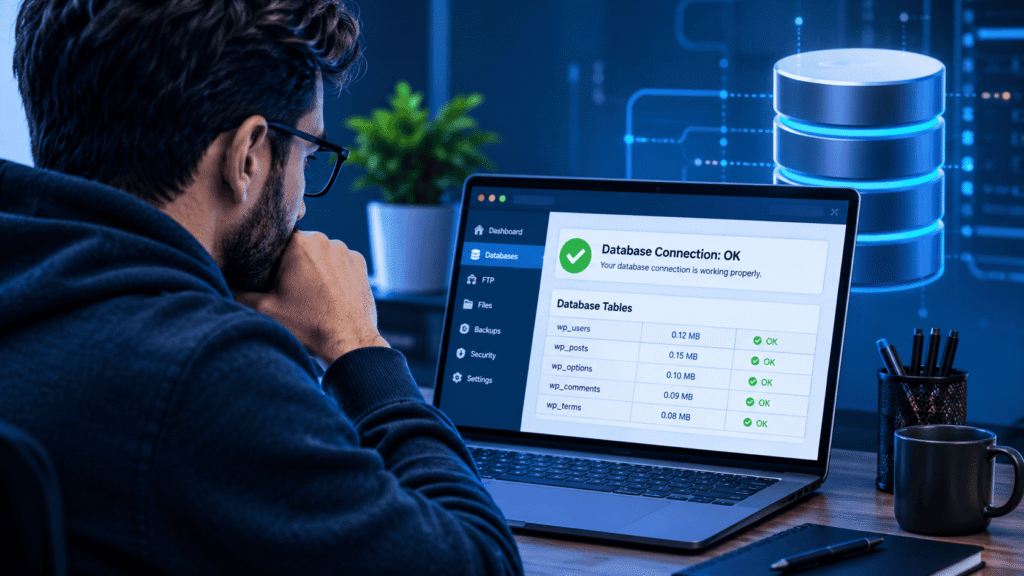
Fix 1: Check Whether Your Database Server Is Running
One of the first things to investigate is whether your hosting provider’s database server is available.
WordPress cannot connect to MySQL or MariaDB if the database service is down, temporarily unavailable, or experiencing technical problems.
This can happen because of:
- Scheduled server maintenance.
- Temporary database service interruptions.
- Server hardware or software problems.
- Hosting resource limitations.
- Database server overload.
- Problems affecting other websites on the same server.
How to check:
- Log in to your hosting account.
- Look for a server status or service-status page, if your provider offers one.
- Check whether there are any reported database service interruptions.
- Check whether other websites hosted under the same account are also experiencing problems.
- Contact technical support if the issue continues.
If you use shared hosting, you generally cannot restart the MySQL or MariaDB service yourself. That is usually managed by the hosting provider.
If you use VPS or dedicated hosting with server administration access, you may have permission to inspect or restart the database service. However, do not restart production services without understanding the consequences or checking the server logs.
What if the database server is unavailable?
If your hosting provider confirms a database service problem, there may be nothing wrong with your WordPress configuration. Ask the provider to restore database connectivity before making changes to your website files.
Fix 2: Check Database Credentials in wp-config.php
Incorrect database credentials are a recognised cause of the WordPress database connection error.
WordPress stores its database connection information in a file called wp-config.php. This file is normally located in your WordPress installation’s root directory.
The database configuration usually looks similar to this:
define('DB_NAME', 'database_name');
define('DB_USER', 'database_username');
define('DB_PASSWORD', 'database_password');
define('DB_HOST', 'localhost');
Each setting has a specific purpose:
| Setting | What it means |
|---|---|
| DB_NAME | The name of your WordPress database |
| DB_USER | The database username |
| DB_PASSWORD | The password associated with that database user |
| DB_HOST | The hostname of the database server |
If any of these values are incorrect, WordPress may be unable to connect.
How to check wp-config.php:
- Log in to your hosting control panel.
- Open File Manager.
- Navigate to your WordPress installation directory. It is often called
public_html. - Locate
wp-config.php. - Download a copy before editing it.
- Open the file using the hosting File Manager’s code editor or a suitable text editor.
- Find the database settings.
- Compare them with the actual database information displayed in your hosting account.
- Correct any confirmed discrepancies.
- Save the file and test your website.
Do not guess the correct values. Obtain them from your hosting provider or database management panel.
What about DB_HOST?
Many hosting providers use localhost as the database hostname, but this is not universal.
Some hosting environments use a separate hostname, port, or socket configuration. WordPress documentation also explains that a database hostname may require an alternate port or socket path.
If you are using Hostinger, you can find your database information through:
Websites → Manage Site → Databases Management
Select the relevant website and locate the database details. Hostinger currently lists localhost as its database hostname for its standard MySQL hosting setup.
If you use another hosting provider, follow its specific instructions.
Fix 3: Verify the Database Name and Username
Even if the credentials in wp-config.php look correct, you should confirm that the database and username actually exist in your hosting account.
This is particularly important if you recently migrated your website, created a new database, or changed hosting providers.
Hosting accounts sometimes add an account-specific prefix to database names and usernames.
For example, a database might be displayed as:
accountprefix_wordpresswhile a username might appear as:
accountprefix_userThe complete values, including the prefix, must match the information in wp-config.php.
How to verify your database information:
- Open your hosting control panel.
- Navigate to the MySQL or Database Management section.
- Find the database associated with your WordPress website.
- Note its complete database name.
- Check the username assigned to that database.
- Compare both values with
DB_NAMEandDB_USERinwp-config.php. - Correct any mismatch using the verified information.
On Hostinger, the database name and username are displayed under Databases Management. On cPanel-based hosting, you can usually find them under MySQL Databases.
Remember that the existence of a database does not automatically mean your WordPress installation is connected to it. The database must also have the appropriate user assigned.
Fix 4: Verify Database User Permissions
A database username and password can be correct, but WordPress may still be unable to access the database if the user does not have the required privileges.
Database permissions determine which operations a user can perform.
WordPress needs appropriate access to retrieve information and, when required, update database records.
This problem may occur after:
- Creating a new database user.
- Changing database permissions.
- Migrating a website.
- Restoring a database.
- Modifying database access settings.
How to check permissions:
- Log in to your hosting control panel.
- Open the database management section.
- Locate your WordPress database.
- Check which database user is assigned to it.
- Review the permissions associated with that user.
- Compare them with your hosting provider’s recommended WordPress database configuration.
- Correct any accidental restrictions.
On Hostinger, database permissions can be managed through the options available beside the selected database in Databases Management.
Do not grant unnecessary privileges or modify permissions randomly. If you are unsure which permissions are required, ask your hosting provider to verify the configuration.
Fix 5: Repair the WordPress Database
Sometimes the connection problem is related to damaged or corrupted database tables.
WordPress includes a built-in database repair facility that can help with certain database table problems.
However, database repair should not be your first response to every connection error. If the real problem is an incorrect password or unavailable database server, repairing tables will not resolve it.
Step 1: Back up your database
Before attempting any repair, create a database backup through your hosting control panel or phpMyAdmin.
Step 2: Edit wp-config.php
Open your WordPress root directory and locate wp-config.php.
Add the following line before the comment that says:
/* That's all, stop editing! Happy publishing. */Add:
define('WP_ALLOW_REPAIR', true);Save the file.
Step 3: Open the database repair page
Visit the following address, replacing yourdomain.com with your actual domain:
https://yourdomain.com/wp-admin/maint/repair.phpIf WordPress can reach the database sufficiently for the repair utility to run, you may see two options:
- Repair Database
- Repair and Optimize Database
Select the appropriate option and allow WordPress to complete the operation.
Important security precaution:
The WordPress database repair page can be accessed without the usual WordPress login while this setting is enabled. Therefore, remove the WP_ALLOW_REPAIR line from wp-config.php immediately after the repair process is complete.
Do not leave the repair facility enabled permanently.
If the repair page cannot connect to the database, return to checking the database server and credentials. The repair tool cannot fix a database server that is completely unreachable.
Fix 6: Check Your Database Using phpMyAdmin
phpMyAdmin is a web-based tool that allows you to view and manage MySQL or MariaDB databases.
It can help you confirm whether your WordPress database exists, whether its expected tables are present, and whether certain tables report errors.
How to access phpMyAdmin:
- Log in to your hosting control panel.
- Open the Database Management section.
- Find the relevant database.
- Select the option to access phpMyAdmin.
- Open the database associated with your WordPress website.
You should see tables with names similar to:
wp_posts
wp_options
wp_users
wp_comments
wp_postmeta
Your table prefix may be different. For example, it could be abc_posts instead of wp_posts.
What should you check?
- Is the correct database visible?
- Are the expected WordPress tables present?
- Does the database appear empty?
- Are there any obvious missing tables?
- Do individual tables report errors when checked?
phpMyAdmin provides options such as Check Table and, for supported storage engines, Repair Table.
If a table reports an error, take a backup and investigate the issue before attempting a repair.
Do not delete or recreate tables simply because they look unfamiliar. Some plugins also create their own database tables, and removing them can cause data loss.
If you are unsure what a particular table does, contact your hosting provider or a WordPress database specialist.
Fix 7: Check Whether a Website Migration Caused the Error
Database connection errors frequently appear after a WordPress website is moved to a new hosting provider.
This is because transferring a website involves more than copying its WordPress files. The database must also be transferred, imported, and correctly connected to the new installation.
Common migration-related problems include:
- The database was not imported successfully.
- The wrong database was imported.
- Database credentials were not updated.
- The database hostname is incorrect.
- The database user was not assigned correctly.
- The database import was interrupted.
- The WordPress files and database belong to different website backups.
Migration troubleshooting checklist:
- Confirm that the original database was exported successfully.
- Confirm that the database was imported into the new hosting account.
- Open phpMyAdmin and check whether the expected WordPress tables exist.
- Verify
DB_NAMEinwp-config.php. - Verify
DB_USERandDB_PASSWORD. - Confirm the correct
DB_HOST. - Check database user permissions.
- Confirm that the WordPress table prefix matches the imported database.
- Ask your new hosting provider to check for import or connection errors.
If you are planning to move your website or transfer it between domains, read our guide on duplicating a website from one domain to another in WordPress.
A successful migration requires both the website files and the database to be transferred correctly.
Fix 8: Check Hosting Resource Limits and Database Connections
Your hosting account may have limited resources, and your database server may also impose limits on the number of simultaneous connections.
If too many clients attempt to connect at the same time, MySQL can reject additional connections.
This can happen because of:
- A sudden increase in website traffic.
- Excessive database requests.
- Poorly optimized plugins.
- Resource-intensive website features.
- Too many simultaneous visitors or processes.
- Hosting plan limitations.
How to investigate:
- Log in to your hosting control panel.
- Open the resource usage or statistics section.
- Check available CPU and memory information.
- Review any database usage or connection-limit warnings provided by your host.
- Check whether the issue occurs during periods of high traffic.
- Ask your hosting provider to investigate database connection limits and server logs.
The MySQL server setting max_connections controls how many simultaneous client connections the server permits. However, this is generally a server-level setting, not something shared-hosting customers can change themselves.
If your website regularly reaches its resource limits, you may need to optimize its database usage, investigate inefficient plugins, or consider a hosting plan with more resources.
You can read our guides to the best WordPress hosting providers and fast WordPress hosting when evaluating your hosting options.
Fix 9: Check Recent WordPress Changes and Plugin Issues
Although database connection errors are often associated with database settings or server availability, recent WordPress changes should also be investigated.
A plugin, theme, or custom code modification may introduce database-intensive operations or trigger problems that expose an existing database or hosting limitation.
Think about what changed immediately before the error appeared.
Did you install a plugin? Update your theme? Add custom code? Change a caching setting?
If the timing suggests a recent plugin change, temporarily deactivate plugins to test whether the problem is related.
How to deactivate plugins through File Manager:
- Log in to your hosting account.
- Open File Manager.
- Navigate to
wp-content. - Locate the folder named
plugins. - Rename it to
plugins_old. - Refresh your website.
This prevents WordPress from loading the plugins in that folder.
If the website starts working, restore the folder name to plugins and investigate the plugins individually. Reactivate them one at a time, checking the website after each activation.
If you identify a problematic plugin, check for an update, review its compatibility, or contact its developer.
Remember that a plugin conflict is only one possible explanation. If the database server is unavailable or the credentials are incorrect, deactivating plugins will not solve the underlying problem.
Fix 10: Contact Your Hosting Provider or Restore a Backup
If none of the previous solutions works, the problem may require intervention from your hosting provider.
This is particularly likely when:
- The database server is unavailable.
- Your hosting account has reached a database quota.
- The server is rejecting database connections.
- The database has serious corruption.
- Database files are missing.
- The hosting provider recently migrated or changed your server.
- You cannot identify the problem through your hosting control panel.
Contacting hosting support
Send your hosting provider a message similar to this:
Subject: WordPress Website Showing Error Establishing a Database Connection
Hello,
My WordPress website is currently displaying the message “Error Establishing a Database Connection”, and I am unable to access the website.
Could you please investigate the issue and check the following?
- Whether the MySQL/MariaDB service is running normally.
- Whether the database server is reachable from my hosting account.
- Whether there are any database connection-limit or resource issues.
- Whether the database and its assigned user have the correct permissions.
- Whether the database has any corruption or quota-related problems.
- Whether there are any relevant errors in the server logs.
- Whether any recent server-side changes could have affected database connectivity.
Please let me know the underlying cause and the recommended steps to restore the website.
Thank you.
Your hosting provider may be able to identify problems that cannot be diagnosed through the WordPress dashboard or File Manager.
When should you restore a backup?
If the database was damaged following an update, migration, or other change, restoring a known-good backup may be an option.
Before restoring:
- Confirm that the backup contains both website files and the database.
- Choose a backup from before the problem began.
- Understand that recent posts, comments, orders, and other database changes may be overwritten.
- Create a backup of the current state if possible.
- Ask your hosting provider for help if you are unsure.
Restoring a backup should generally be a last resort, particularly for websites that receive regular content updates or online orders.
5. How to Identify Whether the Problem Is With WordPress or Your Hosting Server
One of the most useful troubleshooting steps is to work out whether the issue is caused by WordPress configuration or the hosting environment.
The following table provides some diagnostic clues.
| What you notice | Possible explanation |
|---|---|
| Website stops working without any recent changes | Database service or hosting problem |
| Error begins after editing wp-config.php | Incorrect database configuration |
| Error appears after changing a database password | Old password still stored in wp-config.php |
| Error starts immediately after migration | Incorrect credentials or incomplete database import |
| Website works intermittently | Database service instability or connection limits |
| Database appears empty in phpMyAdmin | Wrong database selected or incomplete import |
| Error begins after a plugin update | Plugin-related issue or increased database activity |
These symptoms are clues, not definitive diagnoses. Check the hosting error logs and database settings before deciding what to change.
A sensible troubleshooting order is:
- Check whether the hosting provider reports a database service issue.
- Verify the database details in
wp-config.php. - Confirm that the database and user exist.
- Check user permissions.
- Inspect the database through phpMyAdmin.
- Investigate recent website changes.
- Ask hosting support to review server logs and resource limits.
6. What to Do If the Error Appears After a Website Migration
If you recently transferred your WordPress website, focus on the database transfer and connection settings first.
A successful website migration requires two essential components:
- WordPress files, including themes, plugins, uploads, and core files.
- The database containing your website’s content and settings.
Both must be correctly transferred and connected.
Use this checklist:
| Check | What to confirm |
|---|---|
| Database export | The original database was exported successfully |
| Database import | The complete database was imported into the new hosting account |
| DB_NAME | Matches the new database name |
| DB_USER | Matches the assigned database user |
| DB_PASSWORD | Matches the current database password |
| DB_HOST | Matches the new hosting provider’s database hostname |
| User permissions | The database user has the required access |
| Table prefix | Matches the imported WordPress tables |
| Database integrity | The imported database contains the expected tables |
Do not assume that copying all WordPress files is enough. If the database import failed or the configuration still points to the old hosting server, WordPress will not be able to retrieve its content.
7. How to Prevent WordPress Database Connection Errors
You cannot prevent every possible database or server problem, but good website maintenance can reduce the likelihood of recurring issues.
Use Reliable WordPress Hosting
Your hosting provider plays an important role in database availability and website stability.
Choose a hosting service that provides reliable infrastructure, suitable database resources, regular backups, and responsive technical support.
If your website regularly reaches resource limits, review whether your current hosting plan is appropriate.
Maintain Regular Backups
Create regular backups of both your website files and database.
Store copies separately from your hosting account where possible. A backup is only useful if it can be restored, so periodically check your restoration process.
Keep WordPress, Themes, and Plugins Updated
Updates can resolve bugs, compatibility issues, and security vulnerabilities.
However, do not install updates blindly on an important website. Use a staging environment where possible and create a backup before major changes.
Avoid Unnecessary Plugins
Plugins can add useful features, but poorly maintained or resource-intensive plugins may increase database activity.
Remove plugins you no longer use and investigate any plugin that causes unusual resource consumption.
Protect Database Credentials
Keep your database username and password private.
Do not share wp-config.php publicly, and avoid storing database credentials in unsecured locations.
Monitor Website and Hosting Performance
Review your hosting resource usage and website availability regularly.
If you notice repeated database connection errors, investigate the underlying cause instead of repeatedly restarting or repairing the website.
You can also read our guide on improving website speed and performance.
Test Website Migrations Carefully
Before considering a migration complete, check that the website can connect to its database, that the WordPress dashboard works, and that important pages and features load correctly.
A proper migration test can help identify database problems before visitors encounter them.
8. Frequently Asked Questions
1. What does Error Establishing a Database Connection mean in WordPress?
It means WordPress cannot establish a connection to the database that stores your website’s content and settings. Possible causes include incorrect database credentials, an unavailable database server, insufficient permissions, or database problems.
2. Why is WordPress unable to connect to its database?
WordPress may be using an incorrect database name, username, password, or hostname. The database server may also be unavailable, or the database user may not have the required permissions.
3. How do I fix Error Establishing a Database Connection?
Start by checking your hosting provider’s database service status. Then verify the database details in wp-config.php, confirm that the database and user exist, and check database permissions. If the problem continues, inspect the database and contact hosting support.
4. Where can I find my WordPress database credentials?
You can usually find your database name, username, and hostname in your hosting control panel under MySQL or Database Management. The password is the one assigned to the database user. If you do not know it, use your hosting provider’s password-reset procedure.
5. How do I check whether my MySQL database is working?
Log in to your hosting control panel and open phpMyAdmin. If you can access the correct database and view its tables, the database service is responding to that access. However, this alone does not prove that WordPress’s configured credentials and permissions are correct.
6. Can a wrong database password cause this WordPress error?
Yes. If the password in wp-config.php does not match the password assigned to the database user, WordPress may be unable to authenticate with the database server.
7. How do I repair a corrupted WordPress database?
Start with a complete database backup. You can use WordPress’s built-in repair facility or suitable phpMyAdmin repair options for supported tables. If the database is seriously damaged, ask your hosting provider or a database specialist for help.
8. Why does my WordPress website show a database connection error after migration?
The new hosting account may have different database credentials or a different hostname. The database may also have been imported incompletely, or the database user may not have been assigned the correct permissions.
9. Can a hosting provider cause a WordPress database connection error?
Yes. Database service interruptions, server configuration problems, account quotas, and connection limits can prevent WordPress from connecting. Your hosting provider can investigate these server-side issues.
10. Will this error delete my WordPress website or its content?
Not necessarily. A database connection error does not automatically mean your website content has been deleted. The database may still be intact but temporarily inaccessible. Avoid deleting or recreating database tables before confirming the cause.
11. Can plugins cause a database connection error?
A plugin may contribute to database-related problems through faulty code, excessive database activity, or compatibility issues. However, incorrect credentials and server availability should also be investigated rather than assuming that a plugin is responsible.
12. How long does it take to fix a WordPress database connection error?
It depends on the underlying cause. Correcting a typo in database credentials may take only a few minutes, while database corruption, server problems, or an incomplete migration may require more extensive investigation.
9. Final Thoughts
The WordPress database connection error can make your entire website inaccessible, but it does not necessarily mean your website or its content has been lost.
The best approach is to identify the underlying cause before making changes. Start by checking whether your database server is available, verify the credentials in wp-config.php, confirm database user permissions, and inspect the database if necessary.
If the issue appears after a website migration, pay particular attention to the database import and connection settings. If the problem is server-related, your hosting provider may need to investigate it.
Most importantly, maintain regular backups and avoid making random changes to your database or WordPress files.
With a systematic troubleshooting approach, you can often restore database connectivity without rebuilding your website.
External References and Further Reading
For additional technical guidance, consult these official resources: