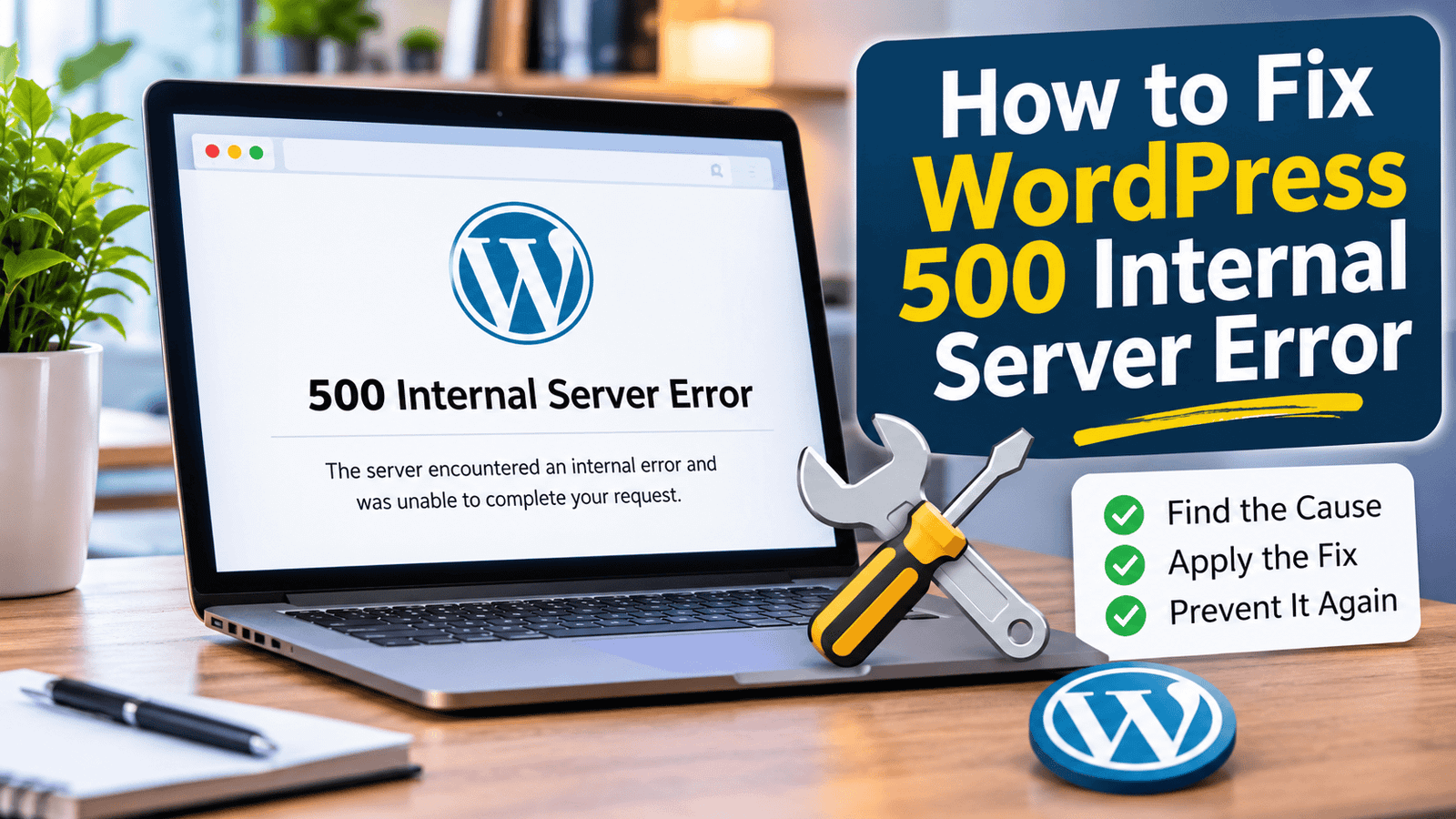
How to Fix 500 Internal Server Error in WordPress (10 Proven Solutions)
Have you ever tried opening your website only to be greeted by a frustrating 500 Internal Server Error in WordPress? Perhaps your homepage suddenly stopped loading, your WordPress dashboard became inaccessible, or visitors started seeing an error instead of your content.
It can be particularly worrying when your website was working perfectly just a few minutes earlier.
The good news is that a WordPress 500 Internal Server Error does not necessarily mean your website has been permanently damaged. In many cases, the problem can be traced to a plugin conflict, a corrupted configuration file, an incompatible PHP setting or a temporary server issue.
The challenge is identifying the actual cause without making unnecessary changes that could create additional problems.
In this guide, we will explain how to diagnose and fix a 500 Internal Server Error in WordPress using ten practical troubleshooting methods. You will learn how to work through your plugins, themes, .htaccess file, PHP settings, file permissions and WordPress core files, even if you cannot access your administration dashboard.
We will also explain how to examine error logs, recognise server-related problems and prevent similar errors from disrupting your website in the future.
Whether you operate a personal blog, a business website or a WooCommerce store, these instructions will help you approach the problem systematically.
Important: Before changing any website files or settings, make a complete backup. If you are unfamiliar with server configuration or database management, ask your hosting provider for assistance before attempting advanced fixes.
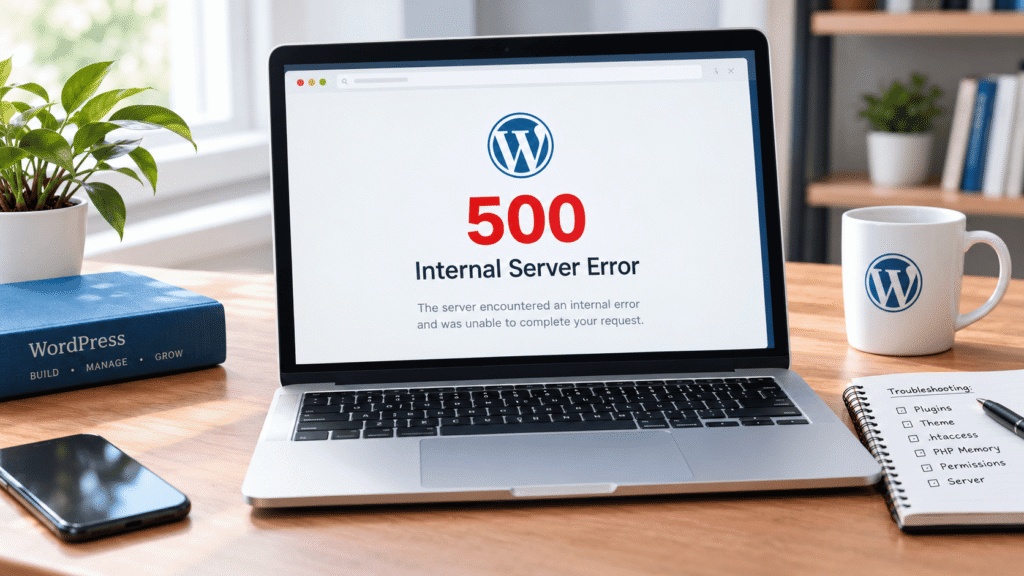
Quick Guide: 10 Ways to Fix a WordPress 500 Internal Server Error
If you want to get started immediately, here is a quick overview of the troubleshooting methods covered in this article.
| Solution | What to check |
|---|---|
| 1. Clear browser cache | Rule out temporary browser-related problems |
| 2. Deactivate plugins | Identify plugin conflicts |
| 3. Switch themes | Check for theme-related PHP errors |
4. Regenerate .htaccess | Repair incorrect rewrite rules |
| 5. Increase PHP memory | Investigate memory exhaustion |
| 6. Check file permissions | Correct file and directory access |
| 7. Check PHP version | Identify compatibility problems |
| 8. Enable debugging | Find the actual error in logs |
| 9. Replace WordPress core files | Repair potentially corrupted files |
| 10. Contact hosting support | Investigate server-level problems |
A useful tip: If your website stopped working immediately after installing a plugin, changing your theme or updating PHP, investigate that change first. It can provide an important clue about the cause.
1. What Is a 500 Internal Server Error in WordPress?
An HTTP 500 Internal Server Error is a generic server-side error indicating that the server encountered an unexpected condition and could not complete a request.
In simple terms, your browser has requested a page, but something has prevented the web server from delivering it successfully.
On a WordPress website, the problem may originate from several different components, including PHP scripts, plugins, themes, configuration files or the hosting environment.
You might encounter different versions of the same error message:
- 500 Internal Server Error
- HTTP Error 500
- Internal Server Error
- The website is currently unable to handle this request
- 500 – Internal Server Error
- A blank or white screen when opening a page
The exact message depends on the web server and hosting configuration.
Is a 500 Error the Same as a 404 Error?
No. These errors indicate different problems.
| Error | Meaning | Common cause |
|---|---|---|
| 500 Internal Server Error | The server encountered an unexpected problem processing the request | PHP errors, plugin conflicts or server configuration |
| 404 Not Found | The requested resource could not be found | Incorrect URL or missing page |
| 403 Forbidden | Access to the requested resource is denied | Permissions or security restrictions |
| 502 Bad Gateway | A gateway or proxy received an invalid response from an upstream server | Communication problems between servers |
| 503 Service Unavailable | The server is temporarily unable to handle the request | Maintenance or server overload |
A 500 error is particularly difficult to diagnose because it does not identify the exact source of the problem. You generally need to examine your website files, configuration or server error logs to find the underlying cause.
2. What Causes a 500 Internal Server Error in WordPress?
There is no single explanation for every WordPress 500 error. Two websites displaying exactly the same message may have completely different underlying problems.
Here are some of the most common possibilities.
| Possible cause | Typical indication | Recommended first check |
|---|---|---|
| Plugin conflict | Error after installing or updating a plugin | Deactivate plugins |
| Theme conflict | Error after switching or updating a theme | Test a default theme |
Corrupted .htaccess | Error following configuration or permalink changes | Rename and regenerate the file |
| PHP memory exhaustion | Memory-related errors in logs | Check PHP memory allocation |
| Incorrect file permissions | Server cannot access required files | Inspect permissions |
| PHP incompatibility | Error following a PHP version change | Check PHP compatibility |
| Corrupted WordPress files | Missing or damaged core files | Check WordPress core installation |
| Server configuration | Multiple pages or websites affected | Contact hosting support |
Let’s look at these causes in more detail.
Plugin conflicts: WordPress plugins add functionality to your website, but incompatible updates, programming errors or conflicts between plugins can cause PHP failures.
Theme problems: A theme may contain outdated or incompatible code that prevents WordPress from processing a request correctly.
Corrupted .htaccess file: Incorrect rewrite rules or other Apache configuration directives can interfere with how your website handles requests.
PHP memory limitations: WordPress, plugins and themes require server resources to execute. Insufficient available memory can cause scripts to fail.
File permission problems: The web server needs appropriate access to your WordPress files and directories. Incorrect permissions can prevent scripts or configuration files from being accessed.
Server-side problems: Sometimes the website itself is not responsible. Hosting resource restrictions, PHP-FPM failures, web server configuration or security rules can produce the same error.
The important thing is not to assume that the first possible cause is necessarily the correct one. Follow the troubleshooting steps below to narrow down the problem.
3. What Should You Do Before Fixing the Error?
Before attempting any of the solutions, take a few precautions.
A WordPress website consists of files, themes, plugins, media uploads and a database containing posts, pages, settings and other information. Changing or replacing the wrong component can create additional problems.
Take a Complete Website Backup
Ideally, your backup should include:
- All WordPress website files.
- The
wp-contentdirectory. - Your WordPress database.
- Your
wp-config.phpconfiguration file. - Any custom server configuration files.
If your hosting provider offers automatic backups, check whether a recent backup is available and whether it can be restored.
You can also create a manual backup through your hosting control panel.
For additional information about safely copying a WordPress website, see our guide on duplicating a WordPress website from one domain to another.
Access Your Hosting Control Panel
If you cannot access WordPress, you will usually need to access your website files through your hosting account.
Look for one of the following:
- File Manager in cPanel or your hosting dashboard.
- FTP access using an FTP client.
- SFTP access, if supported by your hosting provider.
- phpMyAdmin, if database-level troubleshooting becomes necessary.
For most of the file-related fixes in this guide, File Manager or FTP/SFTP will be sufficient.
Check Whether the Entire Website Is Affected
Try opening:
- Your homepage.
- A few individual posts or pages.
- Your WordPress login page.
- Your WordPress administration dashboard.
If every page returns a 500 error, the problem may be affecting the entire WordPress installation or its server environment.
If only one particular page is affected, investigate the functionality, plugin or content associated with that page.
These checks do not establish the cause, but they help narrow down the investigation.
4. How to Fix the 500 Internal Server Error in WordPress
Work through the following solutions one at a time. After each fix, refresh your website in a new browser tab to check whether the error has disappeared.
Important: Before changing WordPress files or settings, make sure you have a recent backup. If your website is business-critical, consider testing changes on a staging copy first.
Follow these solutions to resolve the 500 Internal Server Error in WordPress:
Fix 1: Check and Replace the .htaccess File
A corrupted or incorrectly configured .htaccess file is one of the common causes of a 500 Internal Server Error, particularly on websites hosted on Apache servers.
WordPress uses this file to manage permalink structures and certain server-level rules. If the file contains incorrect directives, your website may stop working.
How to fix it:
- Log in to your hosting control panel, such as Hostinger hPanel or cPanel.
- Open File Manager.
- Navigate to your WordPress installation’s root directory. It is often called
public_html. - Enable the option to display hidden files if you cannot see
.htaccess. - Locate the
.htaccessfile. - Rename it to
.htaccess_old.
Now open your website in a new browser tab.
If your website starts working, the original .htaccess file was probably responsible for the error.
Generate a new .htaccess file:
- Log in to your WordPress dashboard.
- Go to Settings → Permalinks.
- Do not change your permalink structure.
- Click Save Changes.
WordPress should generate a fresh set of permalink rules.
If you cannot access your WordPress dashboard, you can create a new .htaccess file manually, provided your website uses the standard Apache WordPress configuration. For a typical installation, the default rules are:
# BEGIN WordPress
<IfModule mod_rewrite.c>
RewriteEngine On
RewriteRule .* - [E=HTTP_AUTHORIZATION:%{HTTP:Authorization}]
RewriteBase /
RewriteRule ^index\.php$ - [L]
RewriteCond %{REQUEST_FILENAME} !-f
RewriteCond %{REQUEST_FILENAME} !-d
RewriteRule . /index.php [L]
</IfModule>
# END WordPress
Save the file as .htaccess in your WordPress root directory.
If your website uses a subdirectory installation or has custom server rules, the configuration may need to be different. Do not overwrite custom rules without checking them first.
Fix 2: Deactivate All WordPress Plugins
A faulty, outdated, or incompatible plugin can cause a 500 Internal Server Error. This can happen after installing a new plugin, updating an existing one, or changing your PHP version.
If you cannot access the WordPress dashboard, you can deactivate plugins through your hosting File Manager.
How to deactivate all plugins through File Manager:
- Open your hosting control panel.
- Navigate to File Manager.
- Open
public_html/wp-content/. - Locate the folder named
plugins. - Rename it to
plugins_old. - Open your website again.
Renaming this folder prevents WordPress from loading the plugins inside it.
If your website starts working, one of the plugins is likely responsible.
Identify the problematic plugin:
- Rename
plugins_oldback toplugins. - Open the WordPress dashboard if it is accessible.
- Go to Plugins → Installed Plugins.
- Activate plugins individually.
- Refresh your website after each activation.
When the 500 error returns, the last plugin you activated is a likely cause.
Check whether that plugin has an available update or whether it is compatible with your current WordPress and PHP versions. If the issue persists, contact the plugin developer or replace the plugin with a suitable alternative.
If you cannot access the dashboard, you can use the same folder-renaming method to isolate plugins one at a time, or deactivate them through the WordPress database if you are comfortable working with phpMyAdmin.
Tip: Avoid leaving essential security, backup, or caching plugins deactivated longer than necessary.
Fix 3: Switch to a Default WordPress Theme
Your active WordPress theme can also cause a 500 error, particularly after a theme update or when custom code is incompatible with your current PHP version.
To check whether your theme is responsible, temporarily switch to a default WordPress theme.
If you can access the dashboard:
- Go to Appearance → Themes.
- Check whether a default WordPress theme is already installed.
- Activate a default theme, such as Twenty Twenty-Five or another currently available default theme.
- Refresh your website.
If the error disappears, your previous theme may contain a compatibility issue.
If you cannot access the dashboard:
- Open your hosting File Manager.
- Navigate to
public_html/wp-content/themes/. - Identify your currently active theme folder.
- Rename the folder temporarily.
WordPress may automatically fall back to another installed theme. This method will only work if a suitable alternative theme is already available.
If your website loads after switching themes, check for theme updates and contact the theme developer if necessary. You should also review any custom code added to your theme’s functions.php file.
Remember that switching themes can temporarily change your website’s appearance and layout. This is a diagnostic step, not necessarily a permanent solution.
Fix 4: Increase the PHP Memory Limit
WordPress requires PHP memory to process website requests. If a plugin, theme, or script consumes more memory than the server allows, the request may fail.
Depending on the hosting configuration, this can result in a 500 error or a related PHP memory exhaustion message.
You can check your PHP error log to see whether memory exhaustion is actually occurring before changing the limit.
How to increase the WordPress memory limit:
- Open your hosting File Manager.
- Navigate to your WordPress root directory.
- Locate the
wp-config.phpfile. - Download a copy before editing it.
- Open the file and locate the line that says:
/* That's all, stop editing! Happy publishing. */- Add the following code immediately above that line:
define('WP_MEMORY_LIMIT', '256M');- Save the file and refresh your website.
The setting requests a 256 MB memory limit for WordPress. However, your hosting provider may impose a lower server-level limit, which this setting cannot override.
If the error continues, check your hosting account’s PHP settings or contact your hosting provider to ask whether the PHP memory limit can be increased.
Important: Increasing the memory limit may help if your website is genuinely running out of memory. It will not fix a faulty plugin, inefficient code, or another underlying server problem.
Also read our comprehensive guide on improving your website speed and performance.
Fix 5: Check PHP Version Compatibility
WordPress, themes, and plugins rely on PHP to run. An incompatible PHP version can cause fatal errors and make your website inaccessible.
For example, a plugin that has not been updated for newer PHP versions may stop working after your hosting provider upgrades the server.
How to check and change your PHP version:
- Log in to your hosting control panel.
- Find the PHP Configuration, PHP Settings, or PHP Manager section.
- Check the PHP version currently assigned to your website.
- Compare it with the requirements of your installed WordPress version, theme, and plugins.
- If you recently changed PHP versions, consider reverting to the previous supported version temporarily.
Use a PHP version that is actively supported and compatible with your WordPress installation and extensions. Avoid switching to an outdated PHP version simply because it makes an old plugin work.
If you are unsure which version to use, ask your hosting provider to check the PHP error logs and recommend a compatible configuration.
You can also test a PHP version change on a staging website before applying it to your live site.
For additional information, read our guide on troubleshooting WordPress PHP errors.
Fix 6: Check File and Folder Permissions
Incorrect file permissions can prevent WordPress from reading or executing the files it needs. This may happen after a migration, backup restoration, manual file upload, or changes made through FTP.
For a typical WordPress installation, the commonly recommended permissions are:
| File or folder | Typical permission |
|---|---|
| Directories | 755 |
| Files | 644 |
wp-config.php | 640 or 600 where supported |
These are common starting points, not universal requirements. Your hosting provider may use a different configuration depending on its server setup.
How to check permissions:
- Open File Manager or connect to your website through an FTP client.
- Navigate to your WordPress installation.
- Right-click a file or folder.
- Select Permissions, Change Permissions, or the equivalent option.
- Check the current permission value.
- Correct any unusual permissions according to your host’s recommendations.
Do not set every file and folder to 777. This gives excessive access and can create serious security risks.
If you recently migrated your website, ask your hosting provider to check ownership and permissions across the WordPress installation. Incorrect ownership can sometimes cause problems that changing permissions alone will not resolve.
Fix 7: Disable the WordPress Debugging Display and Check the Error Log
If the previous fixes have not worked, the next step is to identify the actual PHP error.
WordPress has built-in debugging options that can help you locate problems caused by plugins, themes, and custom code.
Enable logging in wp-config.php:
- Open your WordPress root directory in File Manager.
- Find
wp-config.php. - Download a backup before making changes.
- Locate the line that says:
/* That's all, stop editing! Happy publishing. */- Add the following code immediately above it:
define('WP_DEBUG', true);
define('WP_DEBUG_LOG', true);
define('WP_DEBUG_DISPLAY', false);
@ini_set('display_errors', 0);- Save the file.
- Reproduce the error by visiting the affected page.
WordPress may now record errors in:
wp-content/debug.logOpen this file through File Manager and look for entries recorded at the time the error occurred.
You may find references to:
- A plugin file or directory
- Your active theme
- A PHP function that is no longer supported
- A memory exhaustion error
- A missing file or function
- A fatal PHP error
These details can help you identify the component responsible.
Important security note: Do not display PHP errors publicly on a live website. The configuration above keeps error display disabled while logging errors to a file. Once troubleshooting is complete, turn debugging off by changing the settings to:
define('WP_DEBUG', false);
define('WP_DEBUG_LOG', false);
define('WP_DEBUG_DISPLAY', false);
If your wp-config.php already contains these constants, edit the existing definitions rather than adding duplicate entries.
Also remember that debug logs can contain sensitive information. Do not publish them or share them publicly without checking their contents.
For more information, refer to the official WordPress debugging documentation.
Fix 8: Re-upload the WordPress Core Files
If your WordPress core files are corrupted, incomplete, or missing, your website may return a 500 Internal Server Error.
This can happen after an interrupted update, an incomplete migration, or an unsuccessful manual file replacement.
You can replace the WordPress core files without deleting your website’s posts, pages, media, or database, provided you follow the correct procedure.
How to replace WordPress core files:
- Create a complete backup of your website.
- Download a fresh copy of WordPress from the official WordPress download page.
- Extract the downloaded ZIP file on your computer.
- Open your hosting File Manager.
- Navigate to your WordPress root directory.
- Upload the fresh
wp-adminandwp-includesfolders, replacing the existing versions. - Upload the root WordPress files as required, taking care not to overwrite your existing
wp-config.php. - Do not replace your
wp-contentfolder, as it contains your themes, plugins, and uploads.
If you are unsure about replacing files through File Manager, ask your hosting provider to perform the operation.
Once the upload is complete, refresh your website and check whether the error has disappeared.
Important: Never delete your entire WordPress installation and upload a fresh copy without understanding which files contain your website’s content and configuration. Your wp-content directory and database are particularly important.
Fix 9: Check Your Hosting Server and Contact Your Hosting Provider
Sometimes the problem is not caused by WordPress at all. Your hosting server may be experiencing an internal error, resource limitation, or temporary configuration issue.
This is particularly possible if:
- Your website stopped working without any recent changes.
- Multiple websites on the same hosting account are affected.
- Your website works intermittently.
- You have already checked plugins, themes, and
.htaccess. - Your hosting provider recently performed server maintenance.
- The error appears across different pages and devices.
What you should check:
- Log in to your hosting account.
- Check the provider’s server status or service announcements.
- Look for resource usage information, including CPU, RAM, and entry processes where available.
- Check whether your account has reached any hosting limits.
- Review the server error logs if your control panel provides access to them.
If you cannot identify the problem, contact your hosting provider’s technical support team.
You can send them the following message:
Hello,
My WordPress website is currently returning a 500 Internal Server Error. I have checked the website’s plugins, theme, and .htaccess file, but the issue is still occurring.
Could you please investigate the server error logs and check whether there are any PHP fatal errors, resource limitations, permission issues, or server configuration problems affecting my website?
Please also confirm whether there have been any recent server-side changes that could have caused this issue.
Thank you.
Your hosting provider can often identify server-level issues that you cannot access or resolve through WordPress.
Fix 10: Restore a Recent Backup
If none of the previous solutions works and your website was functioning normally before the error appeared, restoring a recent backup may be the quickest way to recover it.
This is particularly useful if the error started immediately after:
- A WordPress update
- A plugin or theme update
- A website migration
- A change to PHP settings
- Manual editing of WordPress files
Most reputable hosting providers offer backup and restoration options. You may also have backups through a WordPress backup plugin.
How to restore a backup:
- Log in to your hosting control panel.
- Find the Backups or Restore section.
- Identify a backup created before the error first appeared.
- Check whether it includes both website files and the database.
- Review the restoration date carefully.
- Restore the backup using your hosting provider’s recommended process.
Before restoring, consider the following:
- A backup restoration may overwrite recent posts, orders, comments, form submissions, and other changes.
- If your website is an online store, take extra care not to lose recent orders or customer information.
- If possible, create a fresh backup of the current website before restoring the older version.
- Confirm that the backup itself is complete and usable.
If you are unsure, ask your hosting provider to help you restore the website safely.
Restoring a backup should generally be one of your last options because it may remove changes made after the backup date.
5. What If the 500 Error Appears Only on Certain Pages?
Sometimes your homepage works perfectly, but individual pages, posts, or sections of your website return a 500 Internal Server Error.
This usually indicates that the problem is associated with a particular request, plugin feature, page template, or server rule rather than the entire WordPress installation.
Try the following checks:
- Check recently edited pages: If the error started after editing a particular page, review the changes and any custom code added to it.
- Check page-specific plugins: Forms, page builders, and other plugins may cause errors when a particular feature is loaded.
- Check custom templates: If only pages using one theme template are affected, investigate that template.
- Check permalink settings: Save your permalink settings again to regenerate the rewrite rules.
- Check error logs: Look for the exact URL or PHP file mentioned in the log.
If only one page is affected, avoid making unnecessary changes to the entire WordPress installation. Start by investigating the components used by that particular page.
6. How to Prevent the WordPress 500 Internal Server Error in the Future
Although you cannot prevent every server-side error, good website maintenance can significantly reduce the likelihood of encountering one.
Here are some practical steps in preventing the 500 Internal Server Error in WordPress.
Keep WordPress, Plugins, and Themes Updated
Outdated software can contain bugs and compatibility problems. Keep WordPress, plugins, and themes updated, but avoid installing updates without checking their compatibility.
For important websites, test major updates on a staging environment first.
Use Reliable WordPress Hosting
Your hosting environment plays an important role in website stability. A server with inadequate resources, outdated software, or poor configuration can cause recurring problems.
Choose a hosting provider that offers:
- Reliable server infrastructure
- Supported PHP versions
- Regular backups
- Adequate server resources
- Responsive technical support
- Clear information about resource limits
You can also read our guide to choosing the right web hosting provider.
Create Regular Website Backups
Backups are essential for recovering from unexpected errors, failed updates, security incidents, and accidental changes.
Ideally, maintain both website-file and database backups. Store a copy separately from your hosting account and periodically test whether you can restore it.
Avoid Installing Unnecessary Plugins
Every plugin adds code and functionality to your WordPress website. Poorly maintained or incompatible plugins can cause performance and stability issues.
Install plugins only when they serve a genuine purpose. Remove plugins that you no longer use rather than simply leaving them inactive.
Monitor Website Performance and Resource Usage
Keep an eye on your hosting account’s resource usage. If your website regularly approaches its CPU, memory, or process limits, investigate the cause before it develops into a larger problem.
You can also review our guide on improving WordPress website speed and performance.
Be Careful When Editing WordPress Files
Changes to files such as wp-config.php, .htaccess, and functions.php can affect your entire website.
Before editing them:
- Download a copy of the original file.
- Make one change at a time.
- Check the website after saving.
- Keep a record of what you changed.
If you are not comfortable editing server files, ask your hosting provider or a WordPress developer for assistance.
7. Frequently Asked Questions About the WordPress 500 Internal Server Error
1. What does a 500 Internal Server Error mean in WordPress?
A 500 Internal Server Error means that the web server encountered an unexpected problem while processing your request. It does not identify the exact cause. In WordPress, common possibilities include plugin conflicts, theme errors, corrupted .htaccess rules, PHP problems, and server resource limitations.
2. Can a WordPress plugin cause a 500 Internal Server Error?
Yes. A faulty, outdated, or incompatible plugin can trigger a PHP fatal error and cause your website to return a 500 response. Temporarily deactivating all plugins and reactivating them individually is a useful way to identify the problematic plugin.
3. How do I fix a 500 error without accessing WordPress?
You can troubleshoot the problem through your hosting control panel or an FTP client. Common steps include renaming the .htaccess file, deactivating plugins by renaming the plugins folder, checking theme files, reviewing PHP error logs, and contacting your hosting provider.
4. Is a 500 Internal Server Error caused by my internet connection?
Usually not. A 500 error is generated by the server handling your website request, rather than by a normal internet connectivity problem. However, you can refresh the page, try another browser, or test another internet connection to rule out a separate browser or network issue.
5. Will a 500 Internal Server Error affect my Google rankings?
It can, particularly if the error continues for an extended period. Google may temporarily reduce crawling when a website repeatedly returns server errors. If affected URLs continue returning 5xx responses, they may eventually be removed from Google’s index.
Check Google Search Console’s Page Indexing report to identify affected URLs and monitor the website after the issue is resolved.
6. How do I find the cause of a WordPress 500 error?
Start by checking your hosting account’s PHP error logs. You can also enable WordPress debugging with WP_DEBUG_LOG to record errors in wp-content/debug.log. The log may identify a faulty plugin, theme file, PHP function, or memory-related problem.
7. Can increasing the PHP memory limit fix a 500 error?
It can help if the error is caused by PHP memory exhaustion. However, increasing the memory limit will not resolve other problems, such as corrupted files, incompatible plugins, or server configuration issues. Check the error logs before assuming that memory is the cause.
8. Why does my WordPress website show a 500 error after an update?
An update may introduce an incompatibility between WordPress, your active theme, a plugin, or the PHP version running on your server. Check the error logs and temporarily deactivate recently updated plugins or switch to a default theme to isolate the issue.
9. Should I delete and reinstall WordPress to fix a 500 error?
No, not as your first step. Most 500 errors can be investigated without reinstalling WordPress. Try the troubleshooting methods in this guide first. Replacing corrupted core files may help, but you should protect your wp-config.php, wp-content folder, and database.
10. What should I do if my hosting provider cannot fix the error?
Ask for the relevant server error logs and a clear explanation of the problem. If the issue is caused by recurring resource limitations, server configuration, or unreliable infrastructure, consider upgrading your hosting plan or migrating to a more suitable provider.
8. Final Thoughts
Fixing a 500 Internal Server Error in WordPress can be frustrating because it prevents visitors from accessing your website without explaining exactly what went wrong.
Fortunately, it does not necessarily mean that your WordPress installation or website content is permanently damaged.
Start with the simplest checks: refresh your website, review recent changes, and check your .htaccess file. Then investigate plugins, themes, PHP settings, file permissions, and server logs. If necessary, ask your hosting provider to investigate the issue or restore a recent backup.
The most important thing is to troubleshoot systematically. Make one change at a time, keep a backup, and verify whether the problem has been resolved before moving to the next step.
With the right approach, you can usually identify the underlying cause and get your WordPress website running again.
Recommended External References
For additional technical information, these official resources are useful: