
How to Add GA4 to WordPress in 2026 (Easy Step-by-Step Guide)
How to Add GA4 to WordPress in 2026 (Easy Step-by-Step Guide)
Every website owner, no matter how experienced, eventually hits the same wall:
“I’m creating great content… but I don’t really know what’s working.”
And that’s okay, until it starts costing you time, growth, and money.
You might think your readers love a certain post, but in reality, they’re bouncing off it in seconds.
You might be optimizing pages, but not the right ones.
You might be ranking on Google, but not for keywords that convert.
You might be spending energy fixing WordPress errors, tweaking designs, tweaking plugins, even manually refreshing your dashboard speed settings like we covered earlier in “Advanced Cache PHP Error in WordPress”… yet tracking data is still missing.
This is where Google Analytics 4 (GA4) becomes your digital GPS.
GA4 doesn’t just tell you how many people visited your site.
It tells you:
- Where they came from
- What they clicked
- Which posts kept them engaged
- What triggered actions
- Which devices they used
- Whether they returned
- What made them leave
- And most importantly: how visitors behave like real humans, not numbers
But simply creating a GA4 account isn’t enough.
If you don’t install it properly on WordPress, you’re basically sitting in a plane without radar. Lots of movement, but no direction.
And since you’re reading this in 2026, you’re probably thinking:
“I don’t want a 2022 or 2023 tutorial. I want the newest, easiest, no-guesswork method to add GA4 to WordPress 2026.”
You also want:
- No confusing jargon
- No outdated steps
- No broken plugin recommendations
- No theme conflicts
- No tracking gaps
- No coding errors crashing your site
- No data discrepancies
You want a system that works right now, step-by-step, without requiring you to be a developer.
Whether you’re launching your blog like we walked through on Infinity Folder’s beginner resources, optimizing SEO with Search Console, or troubleshooting WordPress quirks, this guide will help you plug GA4 into WordPress the correct way.
By the end of this article, you will:
- Install GA4 manually and via plugins
- Configure event tracking
- Avoid common mistakes that break analytics
- Connect GA4 to Google Search Console
- Verify data flow
- Future-proof your setup for 2026 and beyond
- Understand which method suits YOU
- Add GA4 without slowing your WordPress dashboard or causing errors
Yes, we’re going long. Yes, we’re going deep. Yes, you’ll walk away smarter.
Because tracking your site isn’t optional anymore — growing it is.
So let’s begin the real way to add GA4 to WordPress 2026 and make it stick.
What Is Google Analytics 4 and Why It Matters in 2026
GA4 is Google’s newest analytics system, built to track:
- Web + app behavior in one property
- Event-based analytics (instead of session-based like Universal Analytics)
- Cookieless insights (important for privacy laws)
- AI-driven audience modeling
- Cross-device measurement
- Predictive metrics
- Fewer data gaps
It’s built for 2026’s world where privacy is tighter and tracking must be smarter.
Also Read: Google Analytics 4 Setup Assistant (Official Guide)
Do You Really Need GA4 on Your WordPress Site?
Short answer: Yes.
Long answer:
Without analytics, you can’t confidently grow your blog, fix leak points in your funnel, improve conversions, or validate SEO efforts.
GA4 is now the standard. Universal Analytics is obsolete.
How GA4 Is Different From Universal Analytics
| Feature | Universal Analytics | Google Analytics 4 |
|---|---|---|
| Data type | Session-based | Event-based |
| Cross-device tracking | Partial | Built-in |
| AI insights | Limited | Advanced |
| Privacy focus | Minimal | Strong |
| Bounce rate | Standard | Replaced by engagement metrics |
Before You Install: Checklist to Get It Right
- You already own your WordPress site
- You have admin access to install plugins or edit theme files
- Your theme supports
<head>script injection (most do) - You’re not using a full-page caching plugin without exclusions (if yes, whitelist GA4 script)
- You have a Google account
- You want to add GA4 without breaking speed or design like we discussed in other tutorials
- You want accurate data tied to SEO performance like sitemaps, search engines, and keyword appearance. (Check your SEO score for free)
Create Your GA4 Property the Right Way
- Log into Google Analytics dashboard
- Click Admin
- Select Create Property
- Name it (e.g., Infinity Folder Blog)
- Select timezone and currency
- Click Next → Business info → Create
- Choose: Web
- Add your domain
- Copy the Measurement ID (G-XXXXXXXXXX)
Two Ways to Add GA4 to WordPress 2026 (Overview)
Method A — Plugin-based
✔ Easiest
✔ No code
✔ Automatic tracking
✔ Less margin for error
Method B — Manual theme injection
✔ No plugin bloat
✔ Loads fast
✔ More control
✔ Needs careful copy/paste
We will cover both, step-by-step.
Method 1: Add GA4 Using a Plugin (Recommended for Beginners)
Best Plugins for GA4 in 2026
- Site Kit by Google
- MonsterInsights (GA4 compatible)
- WPCode (Script manager approach)
- Insert Headers & Footers (simple injection)
- GA4WP (Advanced Google Analytics 4 plugin)
Install GA4 Using Site Kit
- Go to WP Dashboard → Plugins → Add New
- Install Site Kit by Google
- Click Start Setup
- Connect Google account
- Select GA4 property
- Approve permissions
- Let Site Kit auto-inject GA4
Verify Data Flow in Site Kit
- Go to Site Kit → Analytics
- Ensure you see active users
- If blank, clear caches or exclusions from caching layers like discussed in your cache error posts
- GA4 script should be loading inside
<head>
Also Read: How to install GA4 on WordPress using a plugin or manually (detailed guide)
Related: How to install GA4 using Google Tag Manager (step-by-step)
People Also Ask: Can GA4 Slow My WordPress Dashboard?
Yes — if you load it poorly or pair it with heavy plugins or unoptimized caching rules. Using a lean script loader or Google’s Site Kit avoids speed damage.
For dashboard speed tips, see our performance guides on Infinity Folder’s homepage.
Method 2: Manually Add GA4 to WordPress in 2026 (Without Plugin)
Add GA4 to Theme <head>
- Go to Appearance → Theme File Editor
- Open:
header.php - Paste this before
</head>:
<!-- Google Analytics 4 -->
<script async src="https://www.googletagmanager.com/gtag/js?id=G-XXXXXXXXXX"></script>
<script>
window.dataLayer = window.dataLayer || [];
function gtag(){dataLayer.push(arguments);}
gtag('js', new Date());
gtag('config', 'G-XXXXXXXXXX');
</script>
<!-- End GA4 -->
Replace G-XXXXXXXXXX with your Measurement ID.
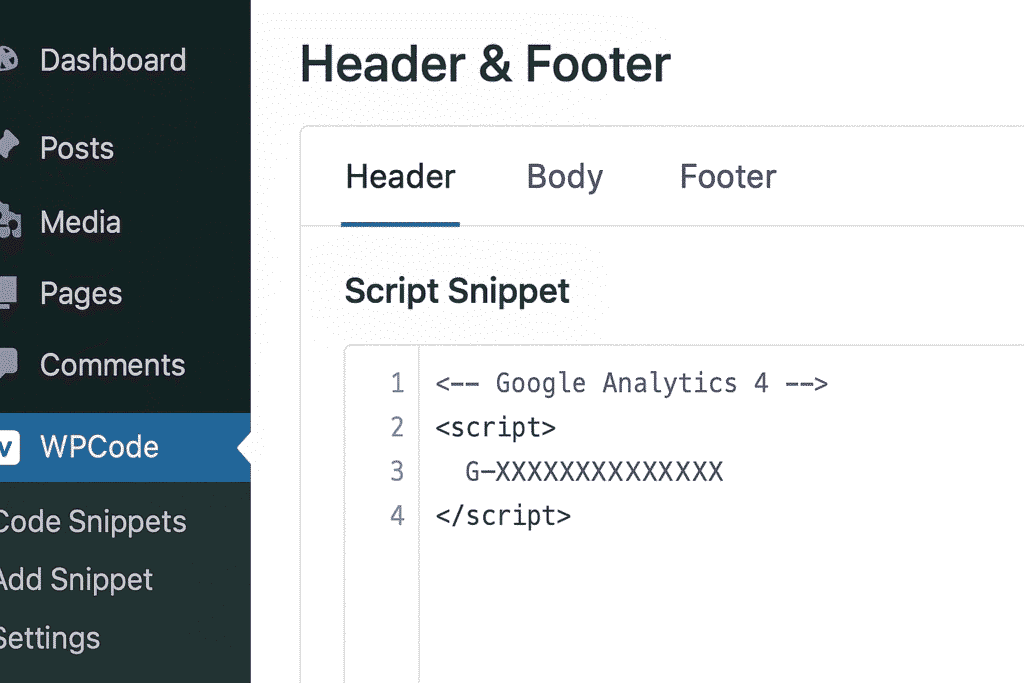
Add GA4 Using WPCode (Cleaner Manual Alternative)
- Install WPCode plugin
- Go to Code Snippets → Header & Footer
- Paste GA4 script in the Header
- Save
Common GA4 WordPress Installation Mistakes (And How to Prevent Them)
- Placing script in footer → misses engagement tracking
- Not excluding from cache → delayed hits
- Multiple GA4 IDs → duplicate data spikes
- No consent mode setup when needed
- Forgetting to publish updates
- Firing script after DOM (too late)
- Using old UA IDs instead of GA4
- Not checking Real-Time dashboard in GA4
Connect GA4 to Google Search Console
- Go to GA4 → Admin → Product Links
- Click Search Console Links
- Choose your verified domain
- Connect
For ownership verification help, check your Infinity Folder article on verifying site ownership on Search Console.
Enable Enhanced Event Tracking in GA4
In GA4 dashboard:
- Go to Data Streams
- Click Configure Events
- Enable:
- Scroll tracking
- Outbound clicks
- File downloads
- Form interactions
- Video engagement
- E-commerce hits (if applicable)
How to Add GA4 Event Tracking to WordPress (No Code)
Use:
- MonsterInsights
→ Insights → Engagement → Enable Scroll tracking - Site Kit
→ Automatically included - GA4WP
→ Choose the events you want to fire
People Also Ask: How Do I Track Button Clicks With GA4 in WordPress?
Use GA4 event builder or MonsterInsights custom dimensions without coding. Set event name: button_click and assign trigger.
Best Placement Tips to Ensure Max Tracking Accuracy
Place GA4 script inside:
<head>of your theme- A script manager like WPCode or Site Kit
- Cache exclusions to preserve analytics hits
- On all page templates (header.php applies sitewide)
How to Confirm GA4 Is Installed Correctly
Use any of these:
- Google Tag Assistant
- GA4 Real-Time reports
- Browser view page source → search for:
G- - Site Kit dashboard
- GA Debugger Chrome extension
Optional: Anonymize IP Tracking for Privacy
Add this to your GA4 config if needed:
gtag('config', 'G-XXXXXXXXXX', { 'anonymize_ip': true });
Add GA4 to WordPress Without Breaking Website Speed
Use:
✔ Async load
✔ Minimal GA4 script
✔ No multiple snippet injections
✔ GTM or Site Kit
✔ Page caching with exclusions
✔ Optimized hosting like discussed in your WordPress hosting guide
People Also Ask: Do I Need Google Tag Manager for GA4 on WordPress?
Not mandatory — but helpful if you scale events or run marketing tags. For simple analytics, Site Kit or WPCode works fine.
Best GA4 Dashboard Metrics Bloggers Must Watch in 2026
Track:
- Engagement rate
- Active users
- Conversions
- Event count
- Landing page report
- Traffic acquisition
- Tech overview (devices/browsers)
- User retention
- Monetization (if enabled)
People Also Ask: How Long Does It Take for GA4 to Show Data?
Real-Time shows instantly. Full reports take 24–48 hours to populate.
Add GA4 Conversion Tracking for Forms or Leads
Use GA4 → Conversions → New Conversion → Add event:
Examples:
form_submitsignup_completecontact_requestpurchase(for WooCommerce users)
Troubleshooting: GA4 Not Showing in WordPress? Try This
- Clear cache plugins
- Check for multiple Measurement IDs
- Ensure script is in
<head> - Disable caching exclusion for admin if needed
- Use real-time report
- Confirm domain in Stream settings
- Reconnect Site Kit if needed
People Also Ask: Can I Use Multiple Analytics IDs on One WordPress Site?
You can, but you should not, unless you filter data for different teams. Duplicate IDs break accuracy.
How to Add GA4 to StoreFront or WooCommerce Themes
Same rule: inject into <head> or use WPCode. Ensure e-commerce tracking is enabled in GA4.
Best Practices After Adding GA4 to WordPress
Now that you’ve installed it:
- Build audiences
- Mark key events as conversions
- Link GSC + GA4
- Monitor traffic sources
- Update monthly
- Do content break-analysis using landing pages
- Improve posts that retain users
- Kill assumptions using data
For post-publish traffic growth ideas, read your Infinity Folder guide on getting readers after publishing a post.
People Also Ask: Can GA4 track mobile app behavior too?
Yes — GA4 properties track apps + websites together.
How to Add GA4 to WordPress in 2026 Using a Child Theme
You can safely add the script using child theme header.php so updates don’t wipe the snippet — similar to your “duplicate a site between domains” workflow.
People Also Ask: What happens if I don’t migrate to GA4?
You will lose tracking entirely. Google no longer processes UA data.

Conclusion
You made it all the way down here, which means one of two things:
- You care about your WordPress data quality, or
- You realized guessing your audience behavior was never a strategy.
Either way — excellent decision.
Because in 2026, tracking your website correctly is what separates blogs that feel busy from blogs that grow intentionally.
Today, you learned how to plug GA4 into WordPress properly — manually, via plugins, with enhanced tracking, privacy safety, speed-friendly load, and data verification.
If I had to summarize it in one line:
A blog without analytics is a conversation without feedback.
To grow in blogging and SEO, you need more than beautiful design or fast hosting.
You need real signals, real behavior patterns, real engagement data, and insights that help you publish with confidence.
Now, whether you’re trying to optimize SEO, fix WordPress errors, build funnels, verify search engine indexing, or grow traffic, GA4 is your backbone tool.
And remember — in this guide you learned specifically how to add GA4 to WordPress 2026, configured for 2026’s analytics world, using the most reliable implementations that avoid theme issues, caching conflicts, or speed damage.
Let’s repeat the focus keyword because it’s the truth of why this post exists:
add GA4 to WordPress 2026 isn’t just a technical task — it’s your first pillar of growth this year.
And for anyone reading this in 2026, searching for how to add GA4 to WordPress 2026, here’s your final reassurance:
You don’t need to be a coder.
You don’t need to over-complicate this.
You just need the right steps — and now you have them.
So go on, install it, verify it, filter it, observe it, and let your content strategy finally be backed by behavior, not assumptions.
And if you want to go even deeper into SEO, search engine appearances, and building authority, you already have the internal guide for that on Infinity Folder.
Yes, one last time — for clarity, intent, and rankings:
This is the best real-world resource to help you add GA4 to WordPress 2026, onward into 2027 and beyond.
You now know how to add GA4 to WordPress 2026 the correct way.
You now understand why add GA4 to WordPress 2026 is essential in 2026.
You now have steps optimized to add GA4 to WordPress 2026 safely.
You now have the confidence to add GA4 to WordPress 2026 without slowing your site.
I hope this guide helps you grow better. Because analytics finally has a home: your WordPress.
How do I add GA4 to WordPress in 2026 without coding?
Install Google Site Kit or WPCode plugin, connect your Google account, select your GA4 property, and allow automatic script injection into the theme head. This is the easiest method to add GA4 to WordPress 2026 without touching code.
Why is add GA4 to WordPress 2026 important for bloggers?
GA4 is event-driven, built for privacy-safe tracking, cross-device insights, and gives real engagement metrics instead of outdated bounce-rate reports. It helps you understand what content works and improves rankings when you add GA4 to WordPress 2026 properly.
How long does it take for GA4 to display stats in WordPress after installation?
Real-time visits display immediately. Full analytics reports, including acquisition and engagement, typically take 24–48 hours to populate after you add GA4 to WordPress 2026.
Can caching plugins break GA4 tracking when added to WordPress?
Yes. You must exclude the GA4 script from full-page caching, or analytics hits may drop or delay. Script managers like Site Kit and WPCode handle this better when you add GA4 to WordPress 2026.
Should GA4 script go in the WordPress header or footer?
Always in the header (inside
) for proper engagement, click, and scroll tracking. Adding in footer causes partial or broken measurement when you add GA4 to WordPress 2026.Do I need Google Tag Manager to add GA4 to WordPress 2026?
No. It helps if you scale tracking, ads, and events. But for most bloggers, Site Kit or WPCode is enough to add GA4 to WordPress 2026 reliably in 2026.